The post detail view
Clicking any post opens the post detail view: one window with everything about that post, and the buttons that generate deeper analysis.
What the view shows, top to bottom
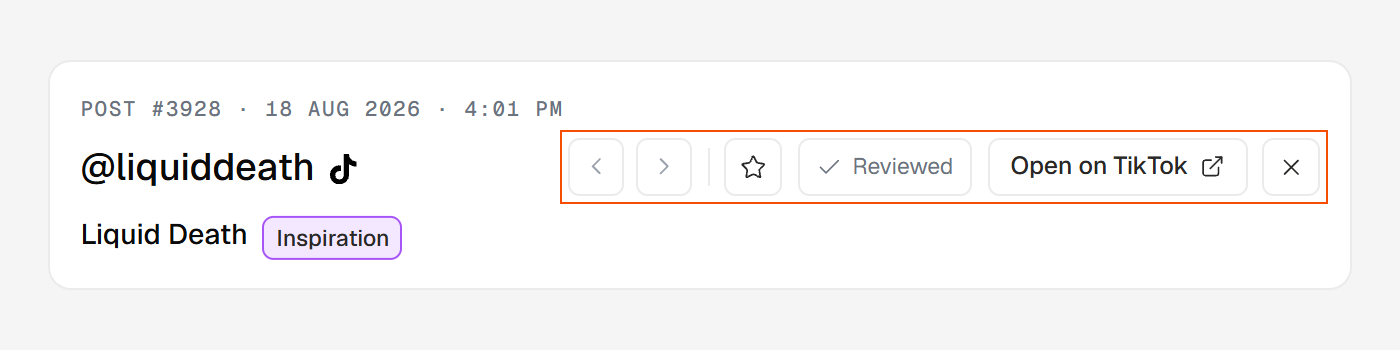
- Header. Who posted it and under which brand (the handle opens the profile's page, the brand name the brand's page), and the post's actions: mark it ★ favorite or ✓ reviewed, open it on its platform, or step to the previous or next post.
- Media. The video, carousel or image, with the caption, hashtags and a Sound link when the post has one. A video whose file isn't stored plays in the platform's own player; nothing loads from the platform until you press play.
- Text and links. A text post shows its words in a text card instead; a poll shows its question and options there, with a line saying its votes aren't counted in its interactions. A post that links to a web page shows the page's preview picture, when there is one, above its words, and one line under the caption names the page and opens it in a new tab.
- The AI reads. The AI-discovery fields, followed by the collapsed transcript. A field a format can't carry is left out: an image has no Outro, and a text post has no Visual hook or transcript.
- Performance. Engagement and Reach, with any badge the post won, and its tracking stage, beside the raw counts. A metric the platform doesn't expose shows as
—, which never means zero. A count the creator hides readsHidden. - The growth chart. How the post grew. See reading the growth charts.
- Generate buttons. Three cards — Brief, Custom analysis, Comments — each opening deeper analysis in the same window. On a video over the 10-minute AI-analysis limit, a video the AI can't read, or a text post whose text and picture weren't collected, a short note stands in for the Brief and Custom cards, and Comments stays. See the three on-demand analyses.
- Snapshots and tracking log. A collapsed table of every check-in, with a row in place for any that couldn't be taken.
Moving between posts
The ‹ › arrows in the header step to the previous and next post in whatever list you opened the post from — the feed, the radar, wherever you were. The ← and → arrow keys do the same, so you can walk a filtered set without touching the mouse.
There's no count of where you are in the list; the arrows keep going as more posts load.