Connect Huntit to Claude (walkthrough)
Connecting takes about two minutes: copy your agency's connection address from Settings → Huntit MCP, add it in Claude as a custom connector, then sign in with your usual email code and approve.
Each teammate connects their own Claude — see what the Huntit MCP is if you haven't met it yet.
Do this part on a computer. Claude's phone app can't add a connector, so the four steps below are a desktop job — but once you're connected, the connection travels with your account and Huntit works on your phone too.
Step 1 — Copy your connection address
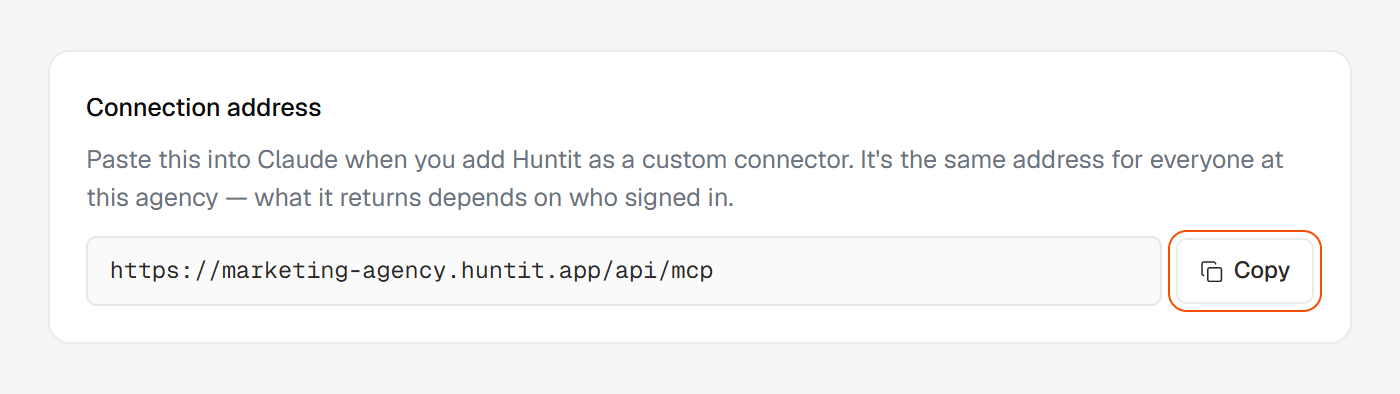
Open the portal, click the gear to open Settings, and pick Huntit MCP. The panel shows your agency's Connection address with a Copy button beside it.
Step 2 — Add it in Claude
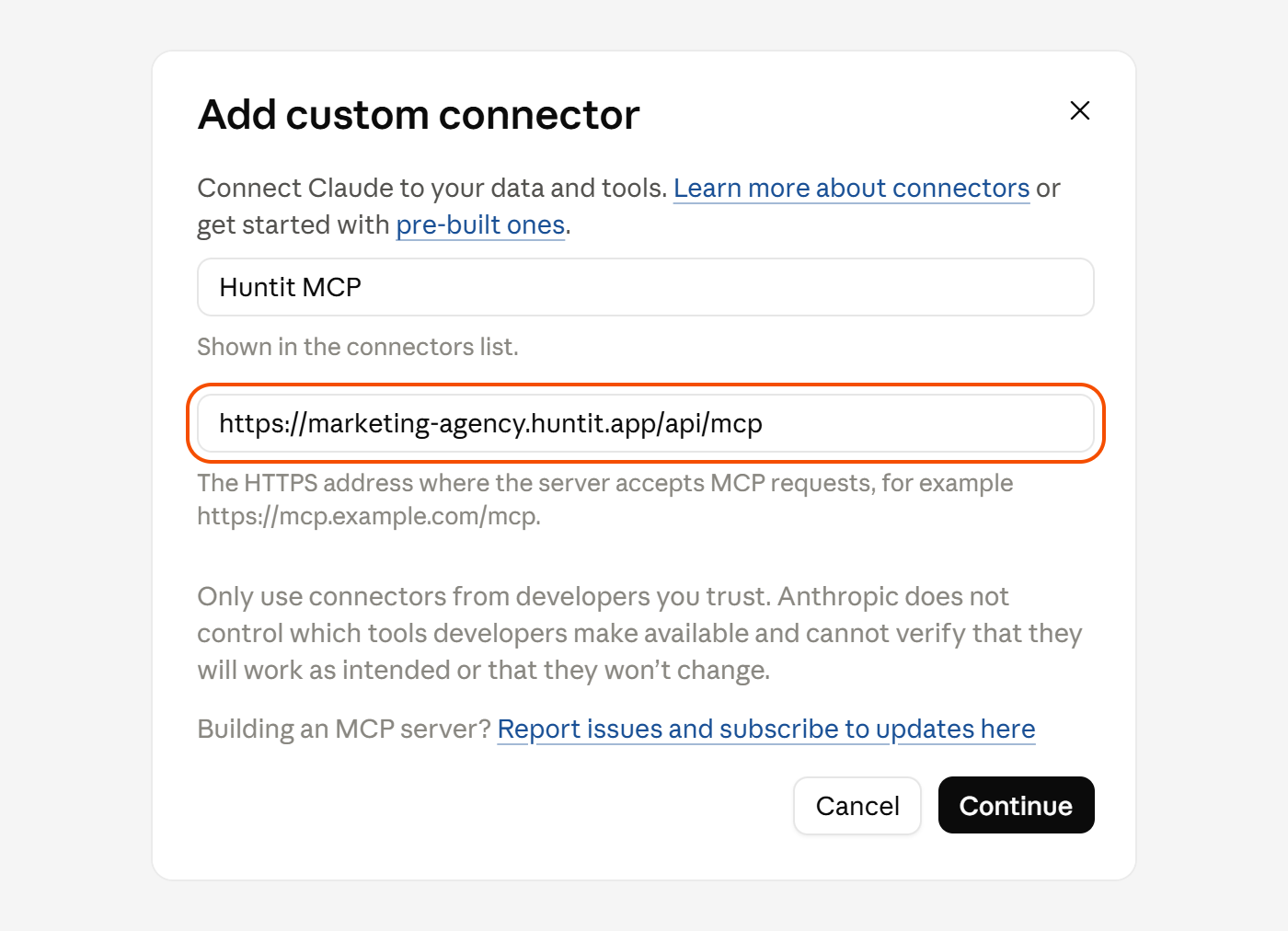
In Claude, open Customize → Connectors → Add → Add custom connector. Name it, paste the address, and press Continue.
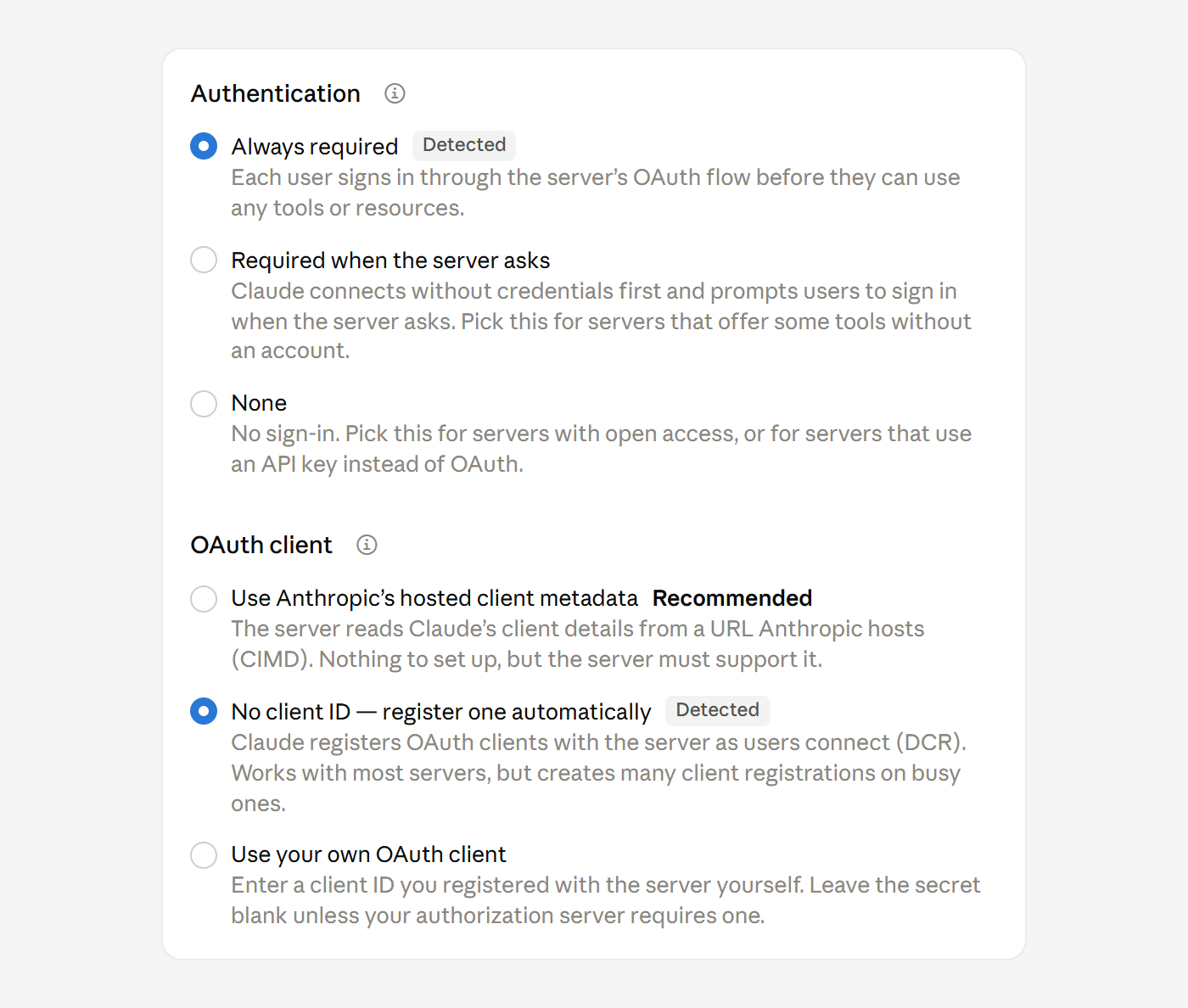
Claude then shows two settings. Keep the two options marked Detected, then press Add.
Custom connectors work on every Claude plan; a free plan can add one. On Claude's Team and Enterprise plans an organization owner adds the connector for the team first, and each teammate then connects their own access.
Step 3 — Sign in and approve
Claude sends you to your agency's own sign-in — the same screen you know, with the code that arrives by email.
Enter the code, approve the connection, and you're back in Claude with Huntit's tools available.
Step 4 — Use it, on any device
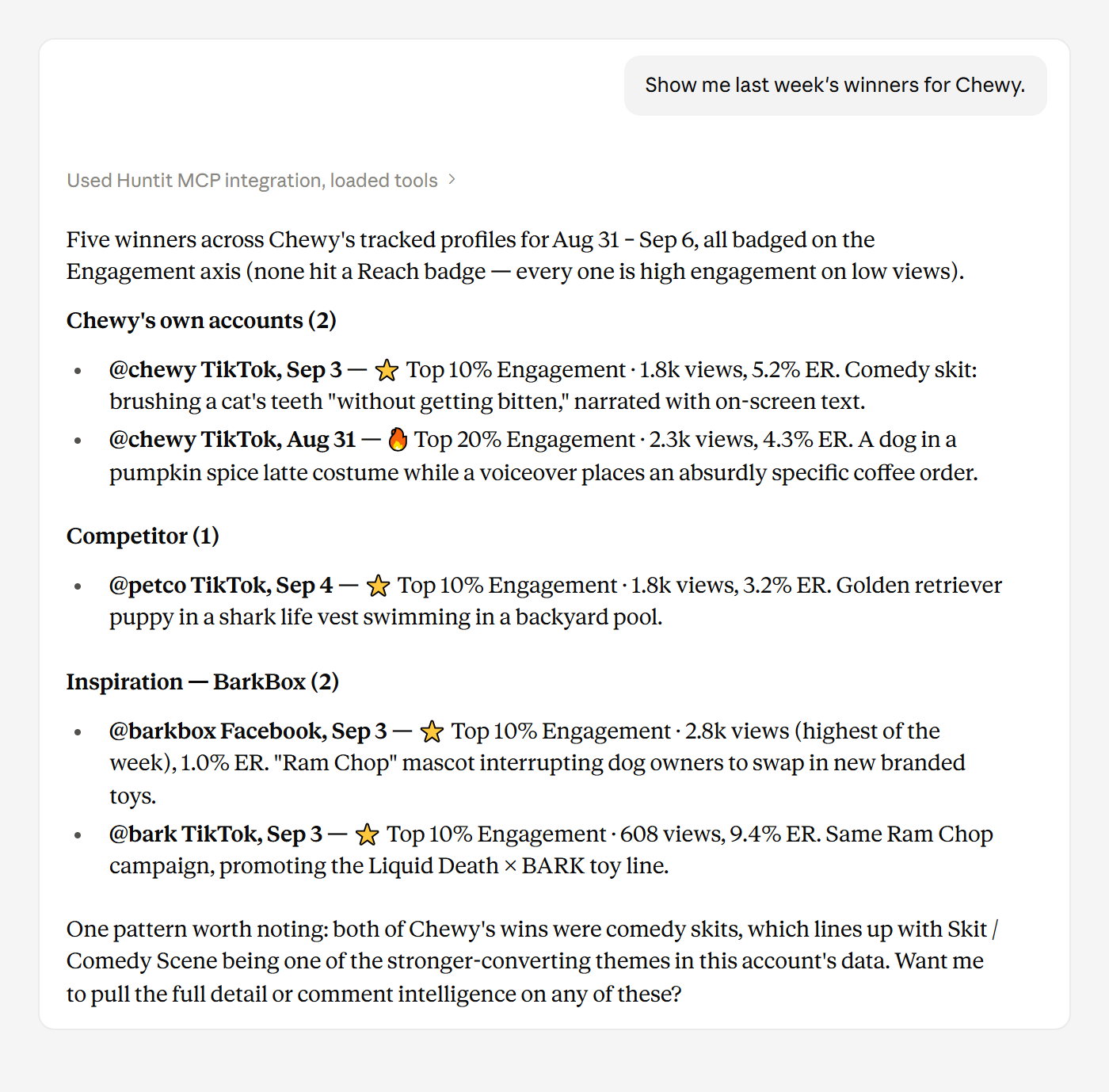
In a chat, open the tools menu and make sure the Huntit tools are enabled. Then just ask — "show me last week's winners for BrandX" — and Claude starts pulling.
You'll see each request it makes, and it asks first before any action that changes or generates something. What Claude can pull is the full map.
From here the connection follows your Claude account rather than the machine you set it up on, so the same tools are there in Claude's phone app — you just couldn't have added them from it.
Claude reads the list of Huntit tools once, when you connect. If Huntit gains a new one, remove the connector in Claude and add it again to pick it up — your Huntit access stays as it is.
Using ChatGPT instead
The same connection works with ChatGPT. On a paid plan, turn on Developer Mode, then add Huntit as a connector the same way: paste the address, sign in with your email code, approve.
The steps and everything you can pull are identical — Claude is simply where most teams start. Other AI apps that speak the same open standard can connect too; if you use one, let us know.
Ending the connection
Use Revoke access in Settings → Huntit MCP. That is the one action that actually ends it.
Removing the connector inside Claude only clears it from Claude. Your Huntit access stays live until you revoke it in the panel, which says the same thing right where the button is.
If someone leaves the agency, their access ends with it: every request re-checks membership.