Requesting support
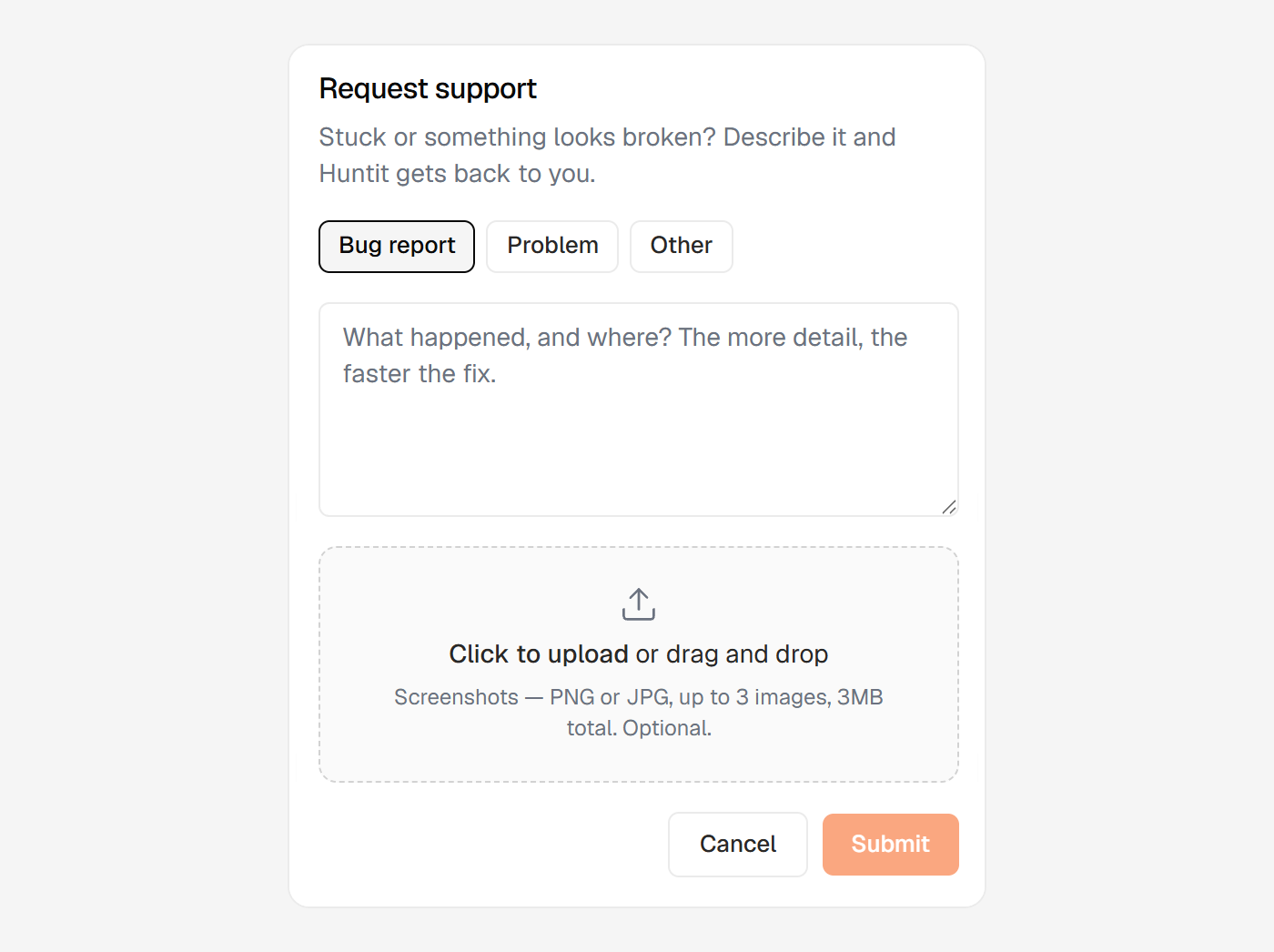
When something looks broken or you are stuck, open Request support from the sidebar. Describe what happened and where, and Huntit gets back to you. The modal opens with a plain prompt:
Stuck or something looks broken? Describe it and Huntit gets back to you.
Before you send a ticket, it is worth a glance at Something looks wrong — start here: many states that look like faults are honest and designed, and that page routes the common ones to a fix you can do yourself.
What to include
Pick a type — Bug report, Problem, or Other — then write the detail. The more specific you are about what you did and what you saw, the faster the fix:
What happened, and where? The more detail, the faster the fix.
You can attach up to 3 screenshots (PNG or JPG, 3MB total). They are optional, but a screenshot of the exact state usually explains more than a paragraph. Use demo or sanitized views where you can.
How replies arrive
Support runs by email rather than chat. When you submit, Huntit confirms it was sent, and replies come back to your inbox.
There's no live chat, by design, and an auto-acknowledgement sets the expectation for what happens next.
What support covers
Support is for product issues and getting unstuck: bugs and broken behaviour, setup and configuration help, documentation questions, outages, and "why did this fail?" diagnostics.
It doesn't cover custom strategy or creative consulting, per-client feature builds, or bespoke workflow redesigns. Huntit is one product for every agency, so those sit outside support.
Ideas for new functionality belong in sharing feedback instead.