Exporting your data
Huntit gives you two ways to export, and both are available any time — not only when you leave.
One is the full bulk export in Settings. The other is a quick "export what I'm looking at" button on the posts feed and winners vault toolbars. They sit behind separate permissions, so who can do which is your owner's call.
The bulk export (Settings → Export data)
Open Settings → Export data to download your agency's data as CSV files, bundled in one ZIP.
Downloading the full export is a permission granted to nobody by default — your owner decides who holds it. Without it, the panel reads "You can't download the full export. Your agency owner decides who can."
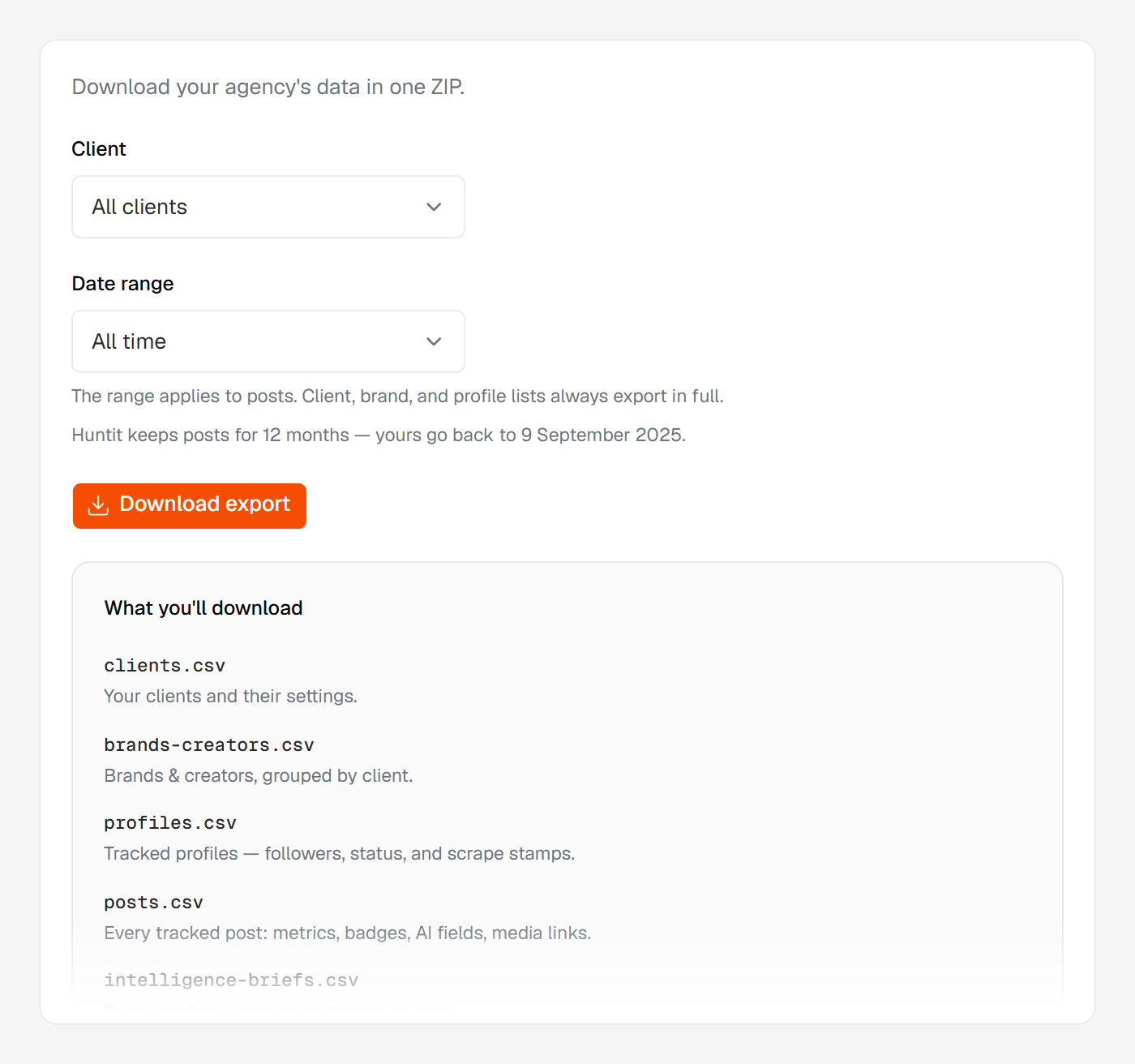
The ZIP holds eight CSVs:
clients.csv— your clients and their settings.brands-creators.csv— brands & creators with their status, grouped by client.profiles.csv— tracked profiles: followers, status, and scrape stamps.posts.csv— every tracked post: metrics, badges, AI fields, media links.intelligence-briefs.csv— every brief you generated, beside its post.comments-intelligence.csv— comment analyses, all five layers, one row per post.custom-analyses.csv— each custom analysis with the prompt that produced it.reports.csv— the index of your stored reports.
Each stored report also rides as its own JSON file under reports/, which reports.csv names — a whole report doesn't fit in a spreadsheet cell.
Only finished work is exported: an analysis that failed or is still running produced no document, so it has no row.
You can scope the export to one client or all of them, and set a date range on posts — All time, the last 30, 90 or 365 days, or a custom range. The range applies to posts only; your client, brand and profile lists always export in full.
Media files stay in Huntit. The post rows carry public links to the videos and images rather than the files themselves, so the download stays a manageable text bundle.
The per-view CSV (feed and winners toolbars)
The Export CSV button downloads exactly the view you're looking at: your filters and sort applied, across the full filtered set, not only the rows scrolled into view. Its hover tip states what it will do and the live row count, and the file downloads instantly.
This is its own permission, separate from the bulk export, and it's granted to managers and members by default.
Over 20,000 rows Huntit refuses rather than hand you a silently truncated file: "Too many rows to export — narrow the filters first." Tighten the filters and it goes through.
The two are not interchangeable. The per-view CSV reaches posts only; the bulk export is the whole database, AI analyses and stored reports included.
Every bulk export is logged
Each bulk export from Settings is recorded in Settings → Activity log — what was exported, by whom, and when. The per-view CSV shows only what that member can already see on screen, so it isn't logged.
Where your data lives and who can see it is covered in your data.