Members — inviting and removing teammates
Your whole team works in one portal, and the roster lives in Settings → Members & roles. To add someone, open that panel and select Invite member.
Inviting and removing teammates is one of the permissions your owner grants, so who can do it is your agency's own choice. Everyone else views the roster without changing it.
Inviting a teammate
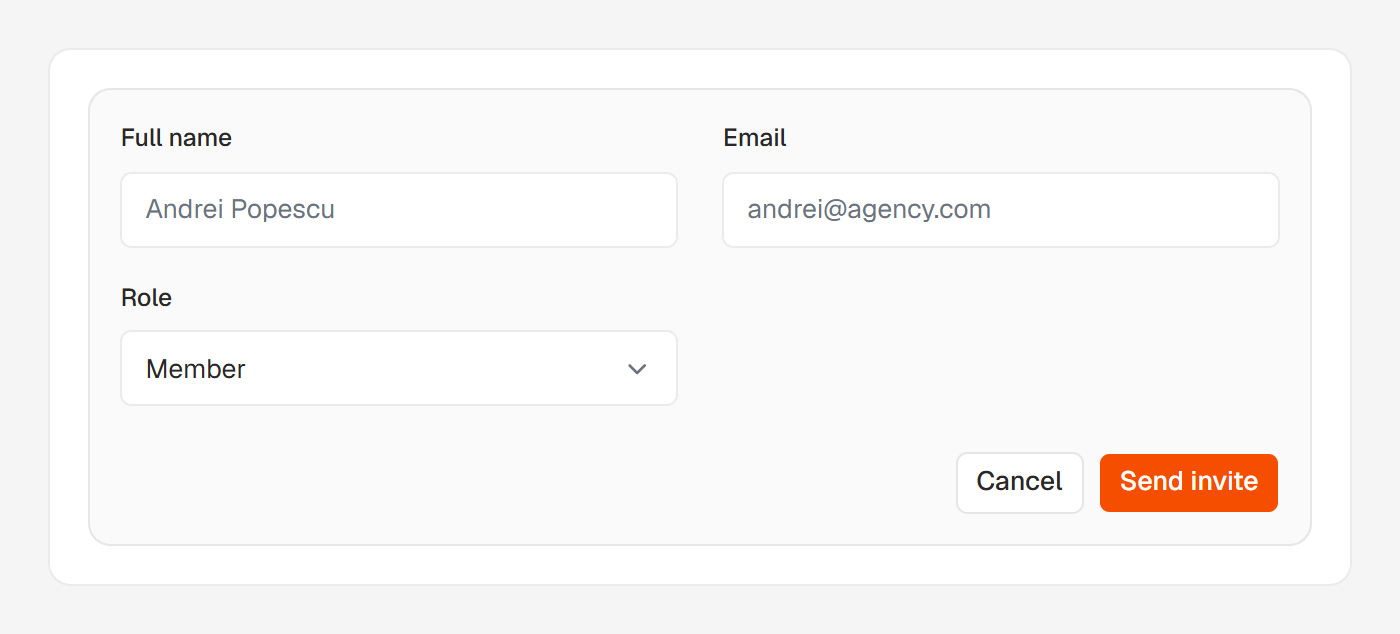
The invite form asks for three things: a full name, an email address, and the role the seat starts on. Member is pre-selected as the recommendation.
Submit it and Huntit creates that person's seat immediately, then emails them to say it's ready. That email points them at your portal's sign-in page — it isn't a sign-in code itself, so it doesn't expire the way a code does.
From there they go to /login, enter the same email, and type in the 6-digit code that arrives. There are no passwords; signing in covers the rest.
Once they're in, they see every client, every brand and everything you track. What they can change depends on their role — roles and what each can do explains the four and the permissions behind them.
You can move someone to a different role later from their row's ⋯ menu.
When the invite email doesn't arrive
The seat is created whether or not the email goes through, so a member can always sign in even if the message is lost. If sending fails, Huntit tells you plainly rather than pretending it worked:
Member added — but the welcome email didn't send. They can sign in at /login.
If you mistyped the address, or the email expired in a spam filter, just invite them again — re-inviting re-sends the seat-ready email. Inviting someone who is already a member simply re-sends that email ("Already a member — re-sent their sign-in email.").
Removing a teammate
Removing a member rides the same permission as inviting, and it takes their portal access away. You can invite them again later.
Before the seat is deleted, Huntit reassigns any clients where that person was the account manager, so none is left without one. They move to you, the owner:
Removed [name]. Their 3 clients are now yours — keep them or pass them to another member.
You cannot remove yourself, and the owner's own seat cannot be removed here — changing who the owner is happens through Make owner instead.